
A fixed address on the card
The NFC tag and QR code use the card’s fixed Taqrio address. Changing a destination keeps that address in place.
One moment. We’ll continue shortly.
NFC & QR card management
Manage your NFC and QR cards with Taqrio. A tap or scan opens the page you choose. When that page changes, start here.
New to Taqrio? Create account
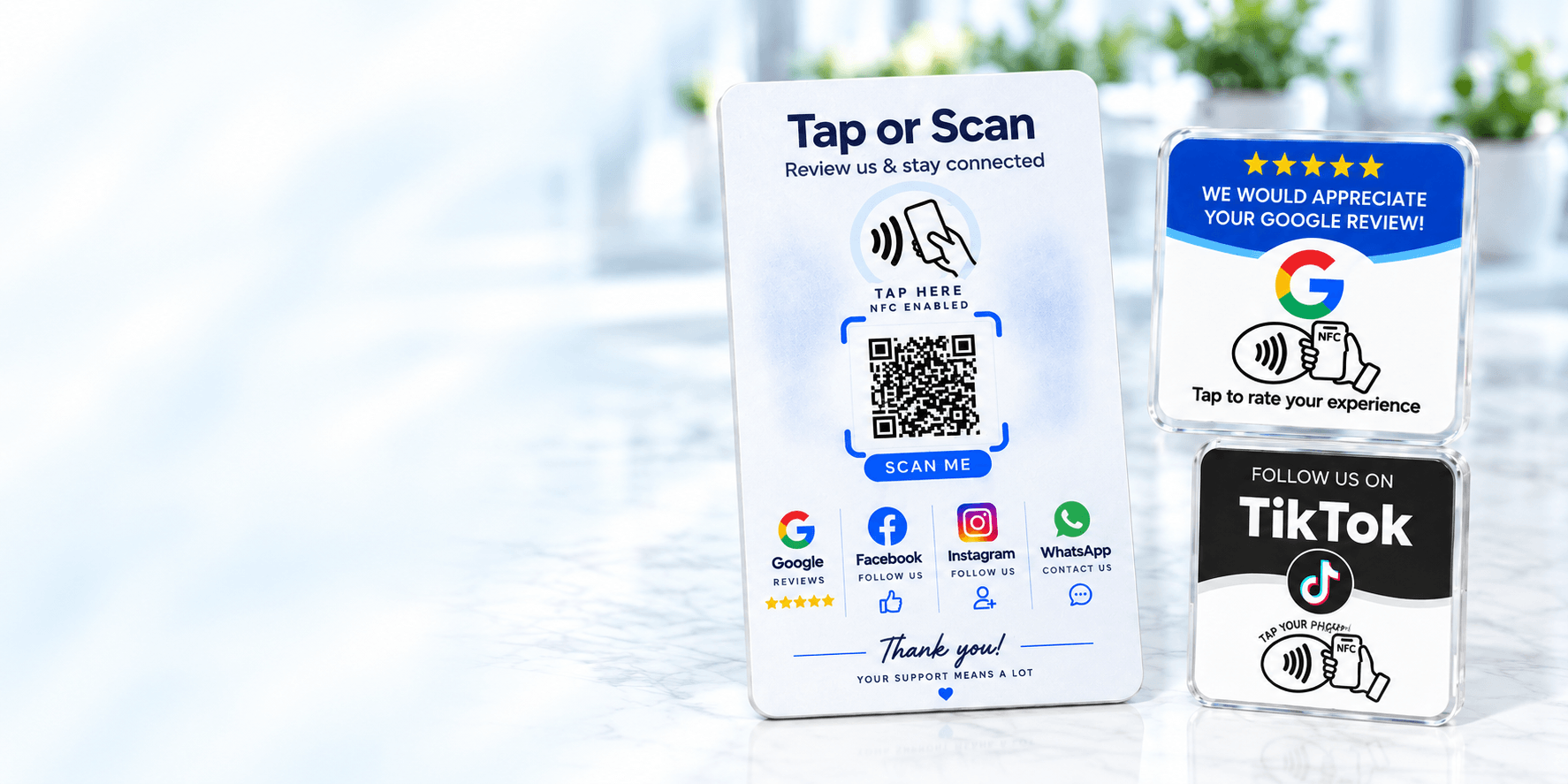
01 / The connection
Your NFC tag and QR code keep the same address. Sign in to update the destination without rewriting the tag or reprinting the code.
See the setup stepsFixed card address
taqrio.example/c/blueAlways stays the sameChange destination
Websiteexample.comNew destination. Same card address.
This is an example. Your actual cards will not change.
The NFC tag and QR code use the card’s fixed Taqrio address. Changing a destination keeps that address in place.
Open a card to set or change its destination URL. Future taps and scans use the saved target when the card is active and available.
Manage your account and sign-in methods, and sign out of this browser. Optional third-party sign-in is offered when available; email verification is still required where needed.
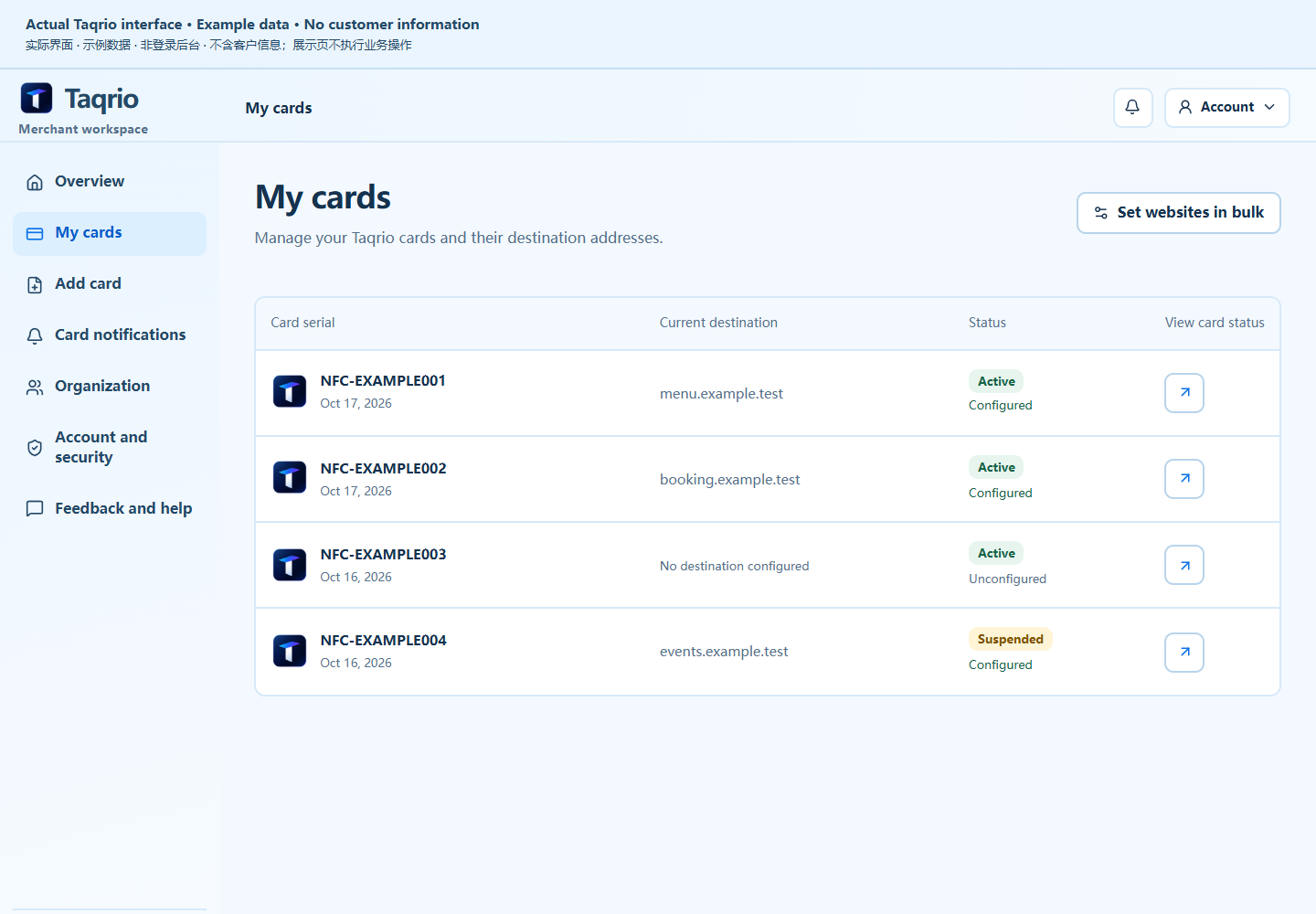
02 / Your card workspace
Your card list brings serial numbers, destinations and current status into one view. Open a card to review its details and update its destination.
03 / How it works
Start with an existing Taqrio card and an account eligible to manage it.
Register your account and complete email verification before accessing card management.
Enter a card serial or link, scan its QR code, or import several card identifiers. Choose Claim to check eligibility and see the result.
Open the card in your workspace, enter a supported web address and save your destination.
Visitors tap the NFC tag or scan the QR code to open the destination. Update it later from your account without rewriting the card.
Card availability, management permissions and any applicable limits depend on your account’s current eligibility.
Your next connection starts here
Already have a Taqrio card? Sign in to claim it and set its destination.
Manage my cardsFind a PVC or acrylic card in the store, then come back here to manage where it goes.
Shop NFC cardsA few useful answers
The essentials of using your cards and managing your account.
Contact TaqrioTaqrio card management works in your browser. Visitors can open a configured destination with an NFC-capable phone or by scanning the QR code; a separate Taqrio app is not required.
Create an account, verify your email and use the card claim page. Enter the card serial or link, scan the QR code, or use batch import for several cards, then choose Claim. Taqrio checks the card’s state and your account’s eligibility and displays the result.
No. TikTok sign-in is optional when available and requests only basic profile access: your app-specific account identifier, display name and profile image. TikTok does not supply or verify your Taqrio email, so you must provide a reachable address and complete Taqrio’s email verification.
You can manage linked providers in Account and Security. Keep another working sign-in method before disconnecting. For information about deleting your Taqrio data or exercising your privacy rights, follow the contact procedure in our Privacy Policy.
Read about your data rightsEmail us for product questions, account support or privacy requests.